OK so this may be where the problems are arising - are you saying you cannot copy the whole contents of the SD card into a folder on your computer?
What you want to be able to do is just copy it all across, as if you were copying some Word documents or folders.
I seem to recall that Windows has a bad habit of trying to “import” photos and videos automatically when it sees a memory card - you don’t want it to do that.
it’s a straight file copy process using Windows File Explorer or whatever they call it these days.
The camera arrived two days ago. @David_Spardo , would you be able to teach me how to train a dog in two days?
It is more difficult if your instructions are coming from a distance, and in writing. And you then put extra pressure on yourself because you think you’re slow, whereas you’re just like everyone else.
For your friends here, watching the process of you mastering the new gear is more nerve-wracking than the Olympics! But you’ll get there, or die trying, and we all hope it’s the former!
Eddie had me create a folder called photos and we managed to copy 3 videos into that. They are in OneDrive and there seems to be no way to easily copy a snapshot from it. I did try to copy one and it says it was copied but I have no idea where to, certainly not in the normal destination which is Pictures.
I had decided to wait till the battery arrives, perhaps tomorrow, and not do anything rash before trying again stage by stage.
But I couldn’t help thinking about it and so, in an idle moment in the heat, took out the Nikon and pressed the on button. It came on but that is normal, it is what’s supposed to follow which seems to be deficient. Just to be awkward I pressed the video button, and it worked and started recording. I took the card out and inserted it into the computer, and there was my short video.
So I deleted that and put the card back in the camera and switched it off. Waited 2 minutes then switched it on again, worked perfectly. Is it teasing me and has it really gone belly up? Or was there a simple explanation like a spec of dust in the wrong place? Hardly dare try again. Maybe later.
Meanwhile, still waiting for tomorrow and another shot at the Panasonic but without the extra cable this time.
Everyone’s being so amazingly helpful and patient - but hope this thread is satisfactorily finished before it starts to threaten the status of the Crit Air sticker location.
OK, battery arrived, now fully charged and I have obviously mastered the way to shoot videos and also to view them on the touch screen.
But the basic issue of how to transfer those videos to my computer without using (and so far unsuccessfully) a video editor, remains.
From reading the extremely detailed manual it appears to me that the solution rests with the supplied CD-ROM which needs to be installed on my computer, which doesn’t have a slot available. An attempt to download the contents of that CD have been unsuccessful due to apparently it being so out of date that it is no longer supported on the Panasonic website.
So, I have an out of date camcorder with an out of date CD-ROM but presumably they would work together if I could only install one on my computer.
So do you think @ChrisMann that if I bought an external drive from Amazon, there is at least one there for about €30 which is stated to be fine with Windows 10, I could download the disc and then would I be able to transfer videos directly without anything else, such as Movavi, involved?
Of course if I wanted to edit I would use the Movavi in the same way as I have always done, but for simple transfers from camcorder to computer and then, using VLC for snapshots, what do you reckon?
I have had another thought too. I have an old and very slow Dell laptop which does have a CD drive. Just to test the theory I’m wondering if I could download the CD on that and then test to see if the 2 short videos I have on the Panasonic can be transferred to it. Before I buy something which may or may not, work.
But if it does I could then buy the external and plug it into the PC.
Glad to hear the battery has arrived, that all is working, and that you are now the Spielberg of the Dordogne.
I would not spend any more money just yet.
It ought to be possible to get the files off the card onto your computer, without involving OneDrive. That’s the first step.
Next is for you to be able to open the AVCHD files and take screen grabs from them, and/or save them as MP4 movie files that you can upload to YouTube etc. if you wish.
I am going to investigate a couple of apps to do the conversion, to see if I can find something easy!
Let’s tackle the “copy to computer” bit.
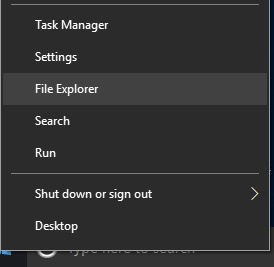
In your taskbar thing at the bottom of the screen you should have a shortcut icon for “File Explorer”. Alternatively, you can right-click on the Windows Start button and choose “File Explorer” from there:
In File Explorer, find the Movies folder under “This PC” in the left sidebar:
In the right hand side of the window, right-click with your mouse and choose “New / Folder” from the pop-up menu.
Name the folder whatever you like e.g. “Jules video July 2024”.
Double-click to open this folder once it’s been created.
Press Ctrl-N on your keyboard to open a new window.
Now insert the SD card into the card reader.
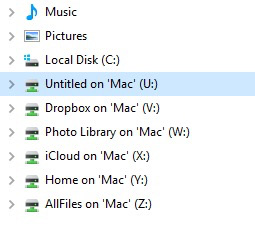
Windows should see the SD card and add it to the list of drives on the left, as “Untitled” with its own drive letter:
In order to record these screenshots I’m running Windows alongside Mac OS on my Mac so in my case it shows up as “Drive U” (nothing to do with Super U Drive) - on yours it may be drive D: or drive E.
Click on this drive in the left sidebar of File Explorer (in the new window you opened) and you should see the contents of the SD card like this:
They may be shown as icons rather than a list depending on your file viewing settings in File Explorer - doesn’t matter. You may not see the .fseventsd file, just the three folders - that’s fine.
Select all (Ctrl-A) and Copy (Ctrl-C).
Switch to the “Jules Video July 2024” window, and paste (Ctrl-V).
You now have the contents of your SD card on your computer, from where they can be imported into a video viewing or editing program.
I followed all your instructions to the letter (apart from there being no ‘Movies’ just ‘videos’) which, with swapping and moving panels around the screen so I could still see them has taken well over half an hour. And I am back where I was days ago staring at a still of a piece of wood from the very first video that I attempted which by the way, was supposed to be no longer on that card. Oh and at one point a video of me looking really tired and confused appeared before me. No idea if that was live, I waved at it and it did not reply, so assume that it was yet another pievce flotsam from the weekend.
But let’s assume for a moment that it had worked, would I have to go through this whole procedure every time I wanted merely to look at a simple little video?
While I was awaiting your reply I did fire up the Dell and put the disc in it buut the result was all gobbledygook to me and I had no idea what to do with it.
If you have successfully followed the above, you will have a folder on your computer with the AVCHD stuff in it.
I reckon you should be able to use the Movavi thing you have already to open the videos from that folder.
I don;t have the full Movavi thing, but I did try it with a Windows version of “Movavi Video Converter” which is their simplified version:
You can either drop in the whole folder which will open all the movies, or go to “Add Media / Add Video”, find the “Jules July 2024” folder, double-click the “Private” folder, then double-click “AVCHD”, “BDMV” and “STREAM” in turn, and inside STREAM will be the individual .MTS files which you can then open individually.
Sorry it’s a bit fiddly but at least it’s possible!
By clicking the “Edit” button I was then able to trim the clip, and take a snapshot (still image).
Then if you want a more easily viewable copy of the clip you can save it as an .MP4 file.
All I have is ACVHDTN which the PC tells me is unavailable.
But I do appreciate all you are trying to do to help but please, why has Movavi come back into the equation again? I use Movavi hardly ever now and when I did it was only to edit videos, not to see them.
Just had another look and if I click on CAM_SD (E) and then Private I get the above ACVHDTN again.
But if I click on that I get 2 things both called Thumb
Does it matter that I keep seeing the word Mac cropping up in your communications now and again ? Just wondering.
That folder on the card should be called “AVCHD” not “AVCHDTN”.
I wonder if that folder has been accidentally renamed in the process of previous attempts to work with the card?
Two suggestions:
Rename that folder to “AVCHD” (on the computer hard drive copy first, then if necessary on the SD card) and see if that allows you to access the files.
Or, reformat the card in the camera (wiping it) and shoot some new footage - that will reset the card’s folder structure.
I am suggesting Movavi simply because you have it, and you need some kind of software to view (or edit / capture stills from) AVCHD files. If you just want to view them you should be able to do that with VLC.
We need some sort of software because Windows does not natively support the AVCHD video format.
The reason “Mac” comes up in my screenshots is because my computers are all Apple Macs - however on one of them I have a copy of Windows 10, running via a program called Parallels, which allows me to run Windows software. But my drives etc are all labelled as “Mac” because that’s where they are located.
If I was able to sit down with you and talk you through it I’m sure we could resolve this quite easily - unfortunately I won’t be coming to France this side of Xmas probably…
I feel really embarrassed as this thread makes me sound so stupid, and I feel stupid, but the fact remains that I have followed all you have said to the letter and it simply doesn’t work. It doesn’t, and even if it did it seems as if a simple task like viewing a video on the PC 30 seconds after recording it is impossible because all sorts of other things have to be done before we get there.
And it isn’t just me. Eddie is well boned up on all this stuff. I was down in his computer room the other day, it is like the cockpit of a 747 in there with 2 large computer screens, one Windows the other Mac, a laptop which he connected up in sheer desparation and goodness know what else and he only managed anything like success by doing all sorts of tricks finally ending up with OneDrive.
He came up here and tried, no better. And got an earful of the noises from Hell for his trouble.
I am strongly convinced that even if by some miracle we manage to get it to work the effort needed each time will make it unviable, so I feel I must call a halt, not sure my sanity can take it.
And the thing that caused all this in the first place , the Nikon, has now maliciously started working again. For how long though, I couldn’t say.
Eddie’s up here again tomorrow, not for this but to install my new French dish LNB, but I know he won’t be able to resist the temptation to come inside as well. He doesn’t like to be beaten, whereas I’ve got a great big white flag ready.
Well I don’t know what to suggest. Perhaps Eddie can makes sense of it if you show him my step by step above. I can’t fathom why he couldn’t copy files across from an SD card to his computers, that’s pretty basic stuff usually.
It may be worth formatting the SD card in the camera and having another go with fresh footage, assuming you don’t mind losing what’s on it.
Maybe your Nikon will tide you over until I or perhaps another SF member is in the area?
I wonder how David is connecting to the SD card? If it’s by USB1 then the transfer will be extremely slow. I remember in the early days copying a full card with 30 minutes of video onto back up drivers could take an hour or more.
Is there an SD card slot on the laptop? If so, then insert the card in that and try copying across again.
Presumably for the same reason that I can’t do it on my PC. Put the card in the slot, at which point everything else starts showing the video immeduately, but with this card, just a blank screen.
I was doing with the camcorder card exactly what I do with every other card. To give you an idea, as the Nikon is now mysteriously working again, I took it on my dog walk this morning.
The video is not worth posting because, with the camera hanging round my neck, the need to take one glove off (needed to protect my hands from the racing sharp edged 33 metre line), and drop it to the ground while making sure to stand on the 33m so Jules doesn’t disappear, and fumble around in the bumbag for a treat for Alice, it is way too shaky.
But, the 3 minute video has been displayed instantly on my PC screen and just to show you, in a couple of clicks, here is a still from the video. I’ve done all this while at the same time having my breakfast, long delayed by the early walk and my 42 metres in the pond.