Get the Android app ‘Solid Explorer’.
That app can view and transfer files over WiFi using ftp. Easy to use, it tells you it’s IP address, and you just type that IP address into Windows File Explorer.
Get the Android app ‘Solid Explorer’.
That app can view and transfer files over WiFi using ftp. Easy to use, it tells you it’s IP address, and you just type that IP address into Windows File Explorer.
It does!!
Glad that works for you. There seems to be an absolute wall beteen my phone and anything other than the cloud. I don’t like the thing anyway (I’m channelling @David_Spardo  ) but I thought that I could take a few photos on it and transfer them rather than buy a new camera.
I was planning on using more-or-less @vero ’ s method since I multiply backup absolutely everything, but since I can’t link the phone and the laptop it all becomes much too messy. I think getting a replacement phone is going to be way easier in the end 
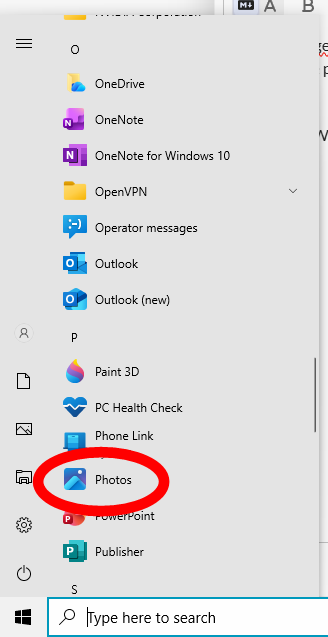
If you have Windows on your PC do you have “photos” in the list when you click on the windows icon?
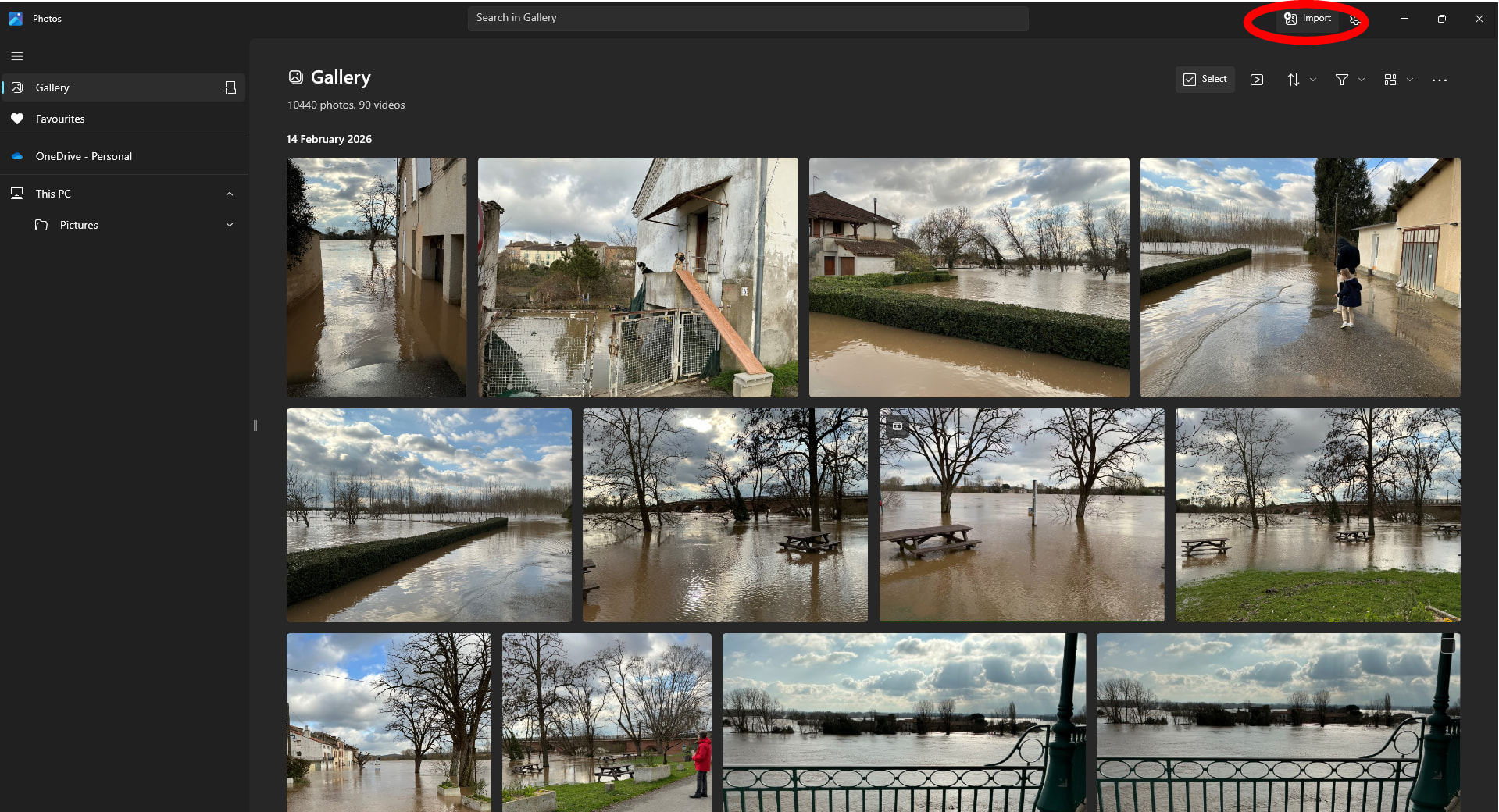
If so, click on it, which opens up “Gallery”.
Top right hand corner there is an option “import”
Click on that, and with a bit of luck your phone number will be on the list of places you can import from. Click on your phone number and the photos that are on your phone will appear and you can click on those you want to download.
This is very often the only way I can get my PC to acknowledge the existence of my android phone.
I’ll look at that, thank you but since I can already see my (albeit apparently empty) phone on Windozs File Explorer, I think the block is at the phone end. It just doesn’t want to share anything 
So uncooperative 
I’ve just tried your method, @SuePJ and, if I’ve connected my phone via USB then the phone appears in the list but it then says that I need to click on the notification which appears on my phone is order to enable the import.
So I’m back at square one with a notification which appears briefly on my phone and clicking/tapping it has no effect whatsoever.
Not sure I understand the issue. Using Google Photos, you can search anywhere on your phone, including any SD cards you have and have them ‘seen’ by Google Photos. My photos are on an SD card. You can set Google photos to back up these ‘seen’ photos to the cloud and they will use some of your free 2 GB of Android cloud storage (also used by Drive and Gmail). Of course if your free 2 GB is full or you don’t have enough freespace you can either make space or buy more. I just have the 2 GB. From your PC you can then use either Google photos (accessible from the Google search pabe in the top right corner) or as @SuePJ says, the Photos app to copy them from your Android cloud store to your PC. If you don’t then need the cloud copy you can delete these in the same apps. I use this method to copy all photos from my phone to my PC.
Thank you @hairbear . I do understand I can transfer photos to the cloud and then download them to my laptop, but why on earth would I want to do that when I have a nice USB cable connecting the 2 devices? Seems bizarre to me!
However I think I am now abandoning this path as I have no intention of sticking my stuff in the cloud.
Thank you for all your suggestions everyone! I really appreciate what you have tried to do for me 
I agree. I wouldn’t dream of putting anything in the cloud. My Android phone talks directly to my PC. Hopefully you can find a solution. 
Thank you Sue. I suspect the solution is buying a little camera (Or get a better phone but I suspect the camera is the cheaper/more reliable option!)
Seriously download Airdroid - it’s in the Google Play Store.
Ignore it trying to get you to sign up etc - open “Airdroid Web” and look for the “connect via IP address” option - it will give you a URL in the form http://192.168.x.y:8888
Connect to that in your browser, the phone pops up a little diaglog box to confirm and you can then browse photos, videos etc.
Don’t worry that it’s http and not https, nothing goes through the cloud or via the internet. You just need your PC and phone connected to the same network. Your PC can have an Ethernet or wi-fi connection.
And no need to plug a USB lead in - which always seem to either a) be in use or b) not where you thought you put them or c) the ones which are handy don’t have the right plug on the end.
@AngelaR I had the exact same problem last week, File explorer detects phone but says “This folder is empty”.
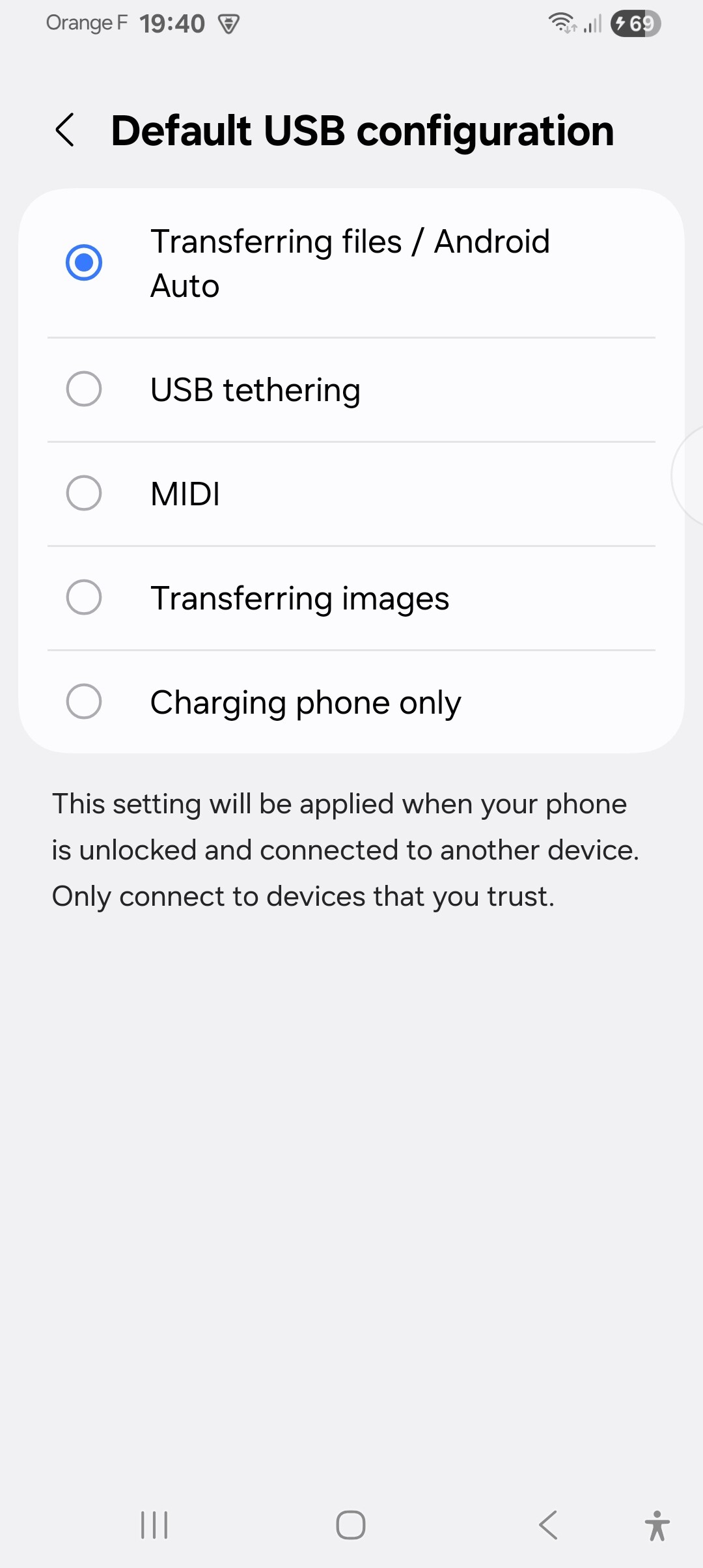
Chat GPT offered several possible solutions one of which was that the phone was stuck in “Charge only” mode, and this turned out to be the case.
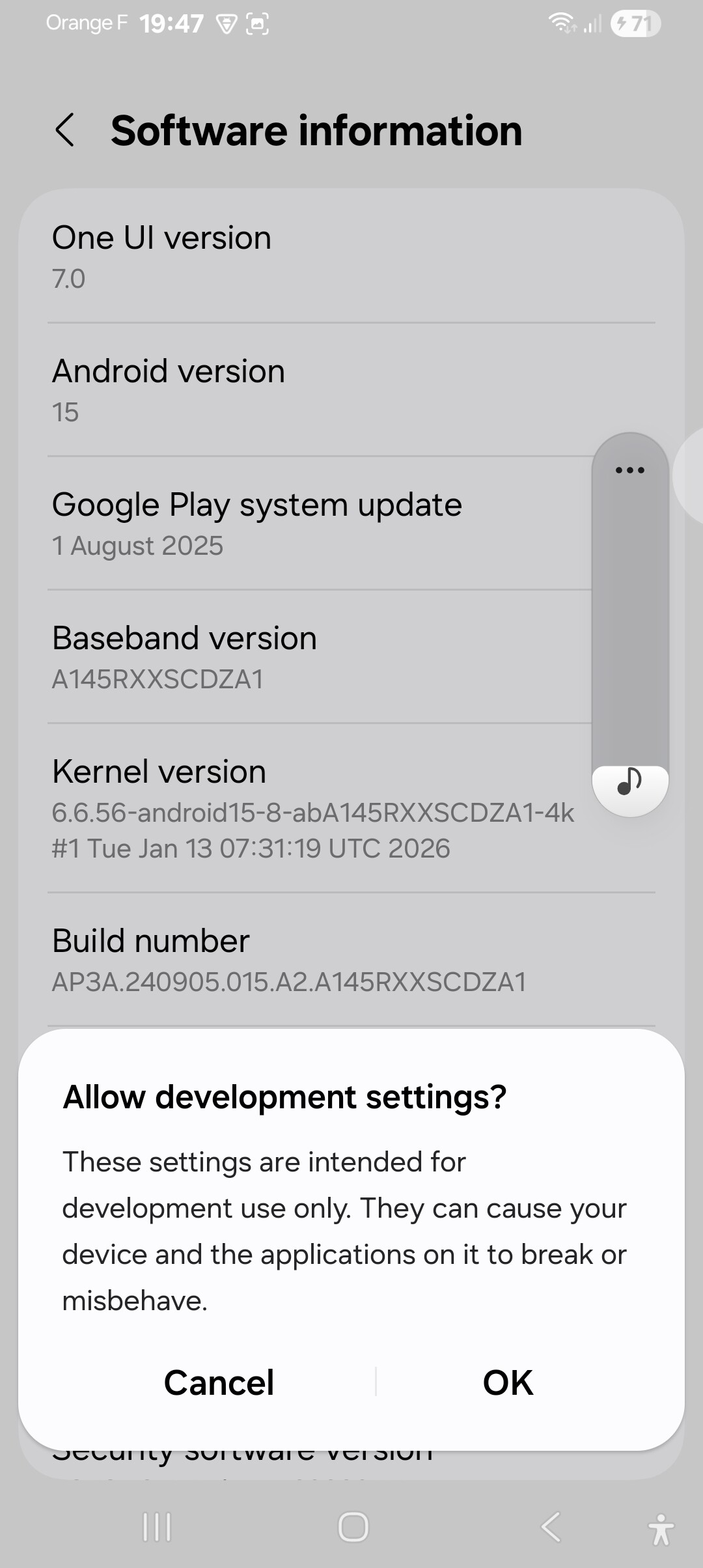
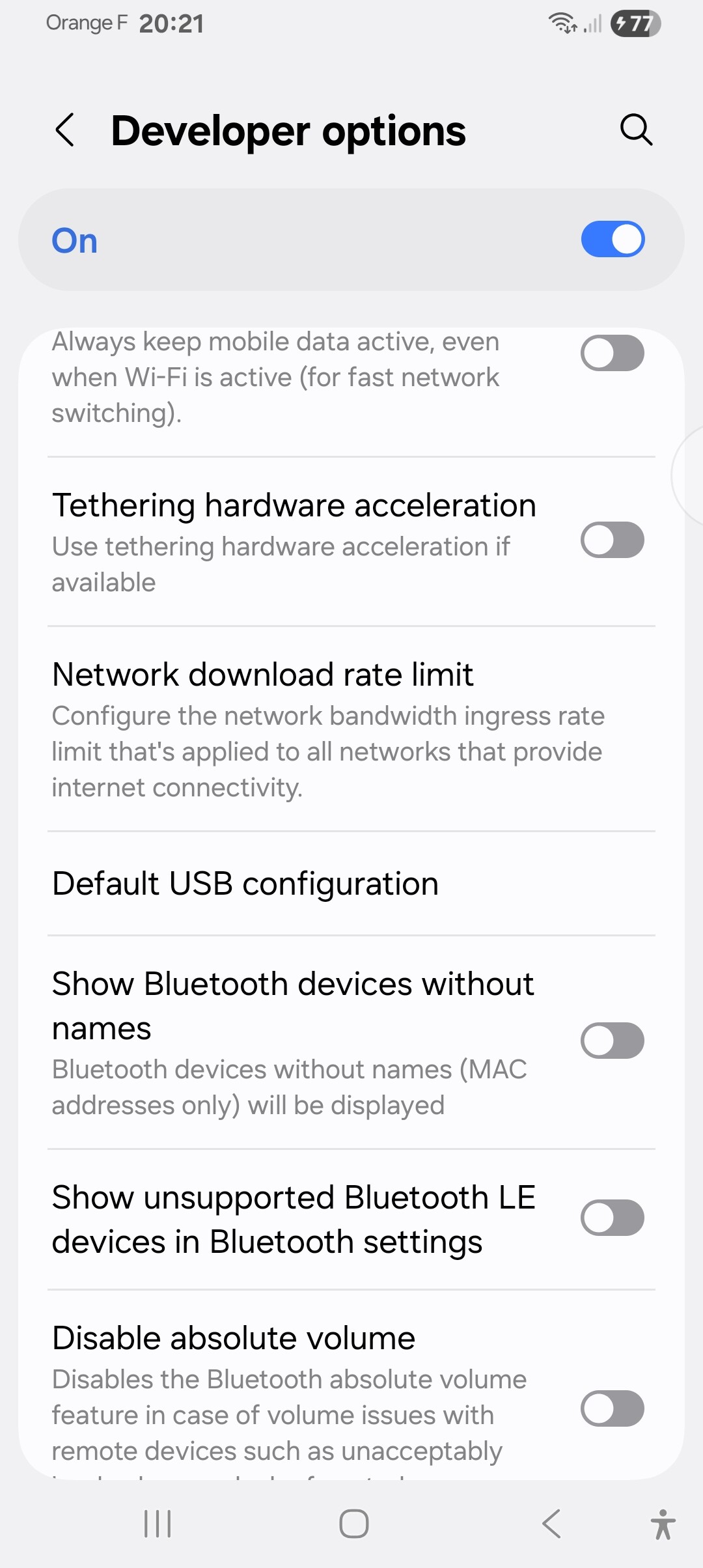
To change from “Charging phone only” mode to “Transferring files/ Android Auto” we need to enter the Developer menu :
Check to see if contents of phone now appear in File explorer.
Note: at the top of the “Developer options” page you can hide this menu from the phones Settings again by setting the option to “Off”.
My guess is that, for me this “Charging only” became my phones default after the last software update.
If there’s only a few photos you want to transfer from your phone, you could email them to yourself from the phone (as attachments) and then download them onto your PC. I often do that, as it’s less hassle.
Me too.
We had a discussion about this sort of thing recently. Peoples paranoia about what ‘they’ will do with our data is really just that. The truth about what ‘they’ really want your data for is, in reality much more prosaic. At least one of you agreed with me. Putting you photos in the cloud temporarily is harmless.
Nothing to do with what “they” will do with my info. I’m just waiting for the day when it all comes crashing down. I’d rather keep my stuff on my computer.
But it’s only temporary. For me, it’s less than an hour and then it’s gone from the cloud. It’s simply a means to an end.
Of course you can do that Sue, uploading doesn’t meant deleting. Both OneDrive and iCloud allow you to keep synced files on your machine and in the Cloud. I’m sure all the others, Dropbox etc., do too.
However only fools don’t also regularly backup their computer to a local hard drive.
[quote=“Panache, post:33, topic:57232”]
problem last week,
And people knock Apple 
Well done @panach or wading through shitty software.
IMHO there are two types of technology users. There are those who are interested in tech and who are happy to try and make anything work (after a fifty year career in IT, from assembler programmer to exec, I’d put myself solidly in that category) and those, I’d say the vast majority of users, that just want stuff to work.
If one was envisioning a solution for the latter, then an end to end, interoperable, multi-platform, integrated and scalable operating system (OS) is the answer. No OS can be all things to all platforms but constancy of design and implementation will minimise conflicts. Only Apple offers that. I wish more vendors had a similar vision.
One must understand Android (not a true OS but a Linux (ie freebee) based kluge), unlike all other operating systems, was only conceived to hoover up your data, not as an OS to support a hardware product. Imagine building a house where none of the bricks, tiles, rafters etc. were actually the same size or fitted together (without a lump hammer), and they were only manufactured to sell you more stuff anyway, that’s Android But users are understandably price sensitive and gullible. So Google wins, people pay for their own surveillance.