Hi all even with The new fibre optic supply with speeds of up to 500 MPs the buffering is as bad as ever is there anything I can do, using win 10?
A few questions… Buffering on what? YouTube, BBC iPlayer, French TV channels, something else?
Also is it on all devices, e.g. PC, laptop, mobile phone, etc…? How are they connected, e.g. wireless or via ethernet cable? If wireless, how far away is your router and are there any thick walls between you and the router?
What speeds does a speed test show, both on a device and run directly on the router?
3 Likes
Another vote for running Speedtest as you won’t be getting 500 mbps.
Ping and Jitter are important.
1 Like
All pandas are important. 
12 Likes
Eats shoots and leaves …
4 Likes
Hi Gareth thank you for your reply at the moment I am using 2 Desktop computers one linked to the TV both are hard wired via Ethernet cables the problem is streaming film sites the speed test I have just done ping 29 download 347.21 and upload 38.91 both are wired direct from the box
Which streaming service & direct or VPN?
Sorry do not understand the question
What are you watching and via what when the buffering occurs?
2 Likes
Which streaming service are you watching? - Prime, iPlayer, Netflix…?
Do you connect using a VPN (OpenVPN, NordVPN, Surfshark…) or directly via your French Fibre broadband.
3 Likes
Another factor might be the computers if you are streaming 4K material - my 12 year old Mac Pro won’t play back 4K reliably as its graphics card isn’t up to the job.
3 Likes
Thank you ChrisMann a good point so does this mean even though my download speed is at present 630MBs if my desktop is more than a few years old there is no hope ?
Not necessarily, but it might explain why it’s stuttering when playing back streamed material.
Is the TV connected directly to the internet or are you effectively using it as a computer monitor?
If you can answer the other questions above about how your setup is configured we may be able to give more specific help.
2 Likes
Hi I have 2 desktops, 1 upstairs, the other set up with our smart TV used as a monitor about 25 mtrs away both hard wired with Ethernet cables I was hoping with fibre optic now installed the buffering would stop or at least a lot less but no just as bad new computers not an option can only afford used from ebay
OK but you haven’t given the information that people have been asking for.
1 Like
In addition to the other information asked, it might be handy to provide:
- graphics chip and version number, and graphics driver version ;
- the type of ethernet chip on your Win10 machine, the link type (full or half-duplex) and the MTU value ;
- for the TV being used as a monitor, the connection and cable type between the PC and the TV - presumably some kind of HDMI cable, but it would be useful to know which kind, and also the revision number of your HDMI circuit on the PC.
RicePudding’s info would be good to have but is perhaps more technical than you are able to discover.
If we can at least have the make and model of the computers and TV set, and the processor chip type and amount of RAM, that would be a start. “Desktop computer” doesn’t tell us anything unfortunately.
Assuming you are using a PC with Windows, to check your PC hardware specs, click on the Windows Start button, then click on Settings (the gear icon). In the Settings menu, click on System. Scroll down and click on About. On this screen, you should see specs for your processor, Memory (RAM), and other system info, including Windows version.
Copy and paste that stuff into a reply here please.
The TV make and model should be printed on the back.
2 Likes
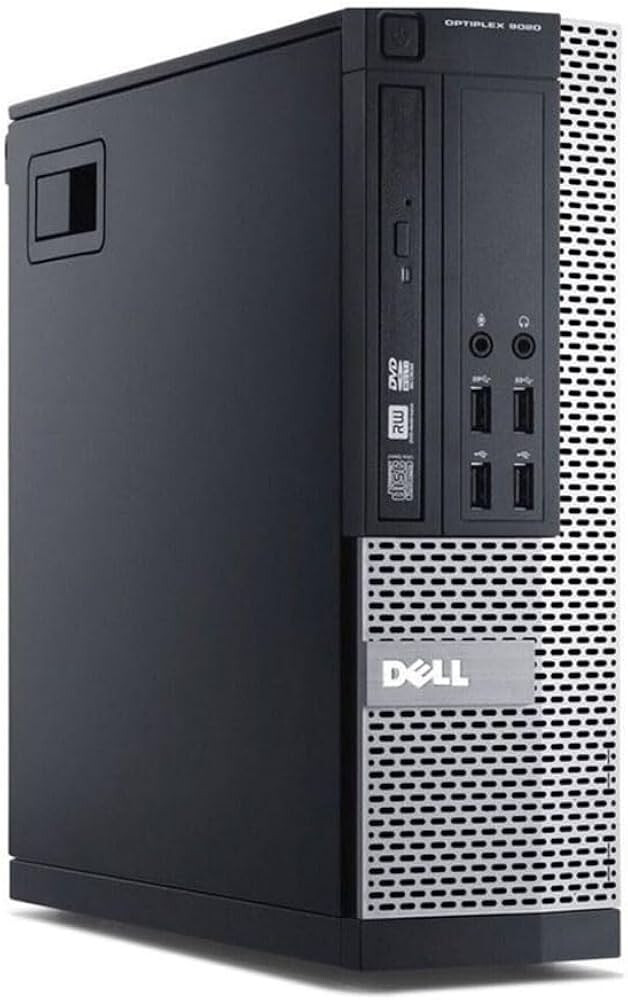
Hi at this point please understand I am an old ,man RicePudding so not very up on technical stuff I have Belarc Adviser on all my computers so if you could tell me ,exactly what to look for on the print out we may be able to do something yes I am using a HMDI cable on the HisenseTV and the computer is a Dell Optiflex 9020 SFF
Do you know how to do a screenshot?
If so, go to the taskbar, right click the mouse and choose “Task Manager” from the menu which appears, if you get a tiny little window with “More details” at the bottom left click that so you get a bigger window and click the “Performance” tab. Now take a screenshot and post it.
Should look like this
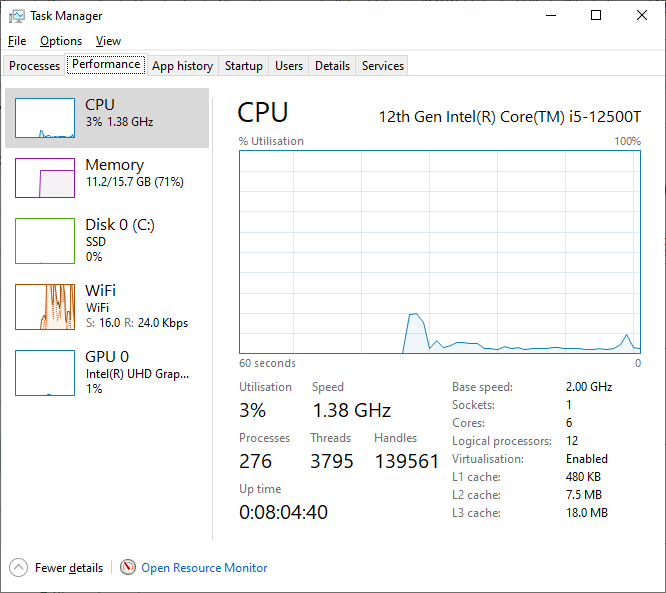
It won’t have any details which will compromise your security by posting it online.
1 Like